

Crafting Custom Tools
A tutorial at Agile Testing Days
Huib, Bart and James
Promise
A lot of the activities you need to do as part of test execution/validation/testautomation you can ‘automate/generate’ by building your own tools, either by combining existing tooling or GEN AI.
Key learnings
- Automate to simplify test processes and access new ways of working.
- Defer dull and precise testing jobs to simple tools.
- Use existing tools, libraries and GEN-AI to build your own tools.
Build the Right Tool for Right Now
Efficient testing needs good tooling – and the right custom tools enable powerful, focussed test approaches. In this innovative workshop, you’ll combine common, accessible tools to build automation for your own testing tasks.
We’ll focus on testing-relevant work like comparing datasets, generating bulk data, wrangling environments, enhancing unit tests with custom matchers and exploring code with generated UIs. We’ll use spreadsheets, shell prompts, and LLMs to access simple automation that perfectly suits your teams’ needs.
After a grounding in the basics of building tools for tasks, our three experienced presenters will help you work together on custom tools. By the end of this interactive tutorial you will have the confidence and starting skills to work on your own toolset – and a handful of example tools that you’ve already built. Enhance your testing powers by making the right tool for your work.
Tools
We can all buy or find tools – this is about making tools, generally by chaining and redeploying tools we can all access.
A tool is something we control that does something better than we can unequipped. In the physical world, tools generally have a place where the human interacts, a part that changes force or size or precision, and a place that interacts with whatever is being worked on. Tools generally outlast the work, but disposable / ephemeral tools are important, if easy to overlook. A tool may not do the work, but make some part of the work possible; we can do some without a ruler or a dust sheet, but we might well not choose to start the work.
In testing, we use tools all the time. To work as professionals and as craftspeople, James (+) reckons you need to be able to make the tools you need.
Logistics
We run in 08:30 – 10:00, 10:30 – 12:00, 13:00 – 14:30, 15:00 – 16:00
You'll need something internet-connected that you can type on.
We have a Miro board, just in case.
Background
These materials may be useful during the workshop
 James Lyndsay
Tools to make tools
These let you build custom tools – often around flowchart-like or graph-like IDEs:
- PowerAutomate (Win) Bart,
- AutoHotKey (Win),
- Automator (Mac) James,
- Shortcuts (Mac / iOS) James,
- Keyboard Maestro (Mac) James ,
- IFTTT (web + remote services) James,
- Zapier (web + remote services),
- n8n (Docker-based UI for tools, from command-line to LLM integrations)
- Ansible (commandline tool to configure servers)
Example of how tools are used and chained
This example uses commandline tools. You can imagine the same with Excel, or try threading something similar in n8n.
- It may be that you've got a log from a test system and you want to extract all lines that refer to a particular transaction that seemed problematic. You'd
grep. - Maybe you've got several logs, and you need to look for every reference. You could merge them while paying attention to the timestamps with a
sort, thengrep, and you'd join those two with a pipe|. - Maybe those logs are remote, but you can get them with
cURL. You|them intosort. Maybe you want to add a suffix to each line, so that you can see the source. Youcurl|sed|sort|grep - Maybe you can't read the pages of scrolling weirdness. You
|thegrepintotail, to see the last 10 lines. - At the end, you've got a single hard-to-read but repeatable command
curl|sed|sort|grep|tail– you use it once and throw it away. Or keep it in a handy spot.
Workbench
We've set up a server which is running several instances of VSCode, accessible via the browser.
Via VSCode, you'll access the command line, the file system, and whatever else is available. I hope that you feel relatively familiar with it.
Access
- Go to cct01 or cct02 or cct03 and pick the env that seems most ... you. Tell the others in your group so you don't clash names. Your password is
password. VSCode may want to set up a more-complete env, so skipor move on until you see something like this:
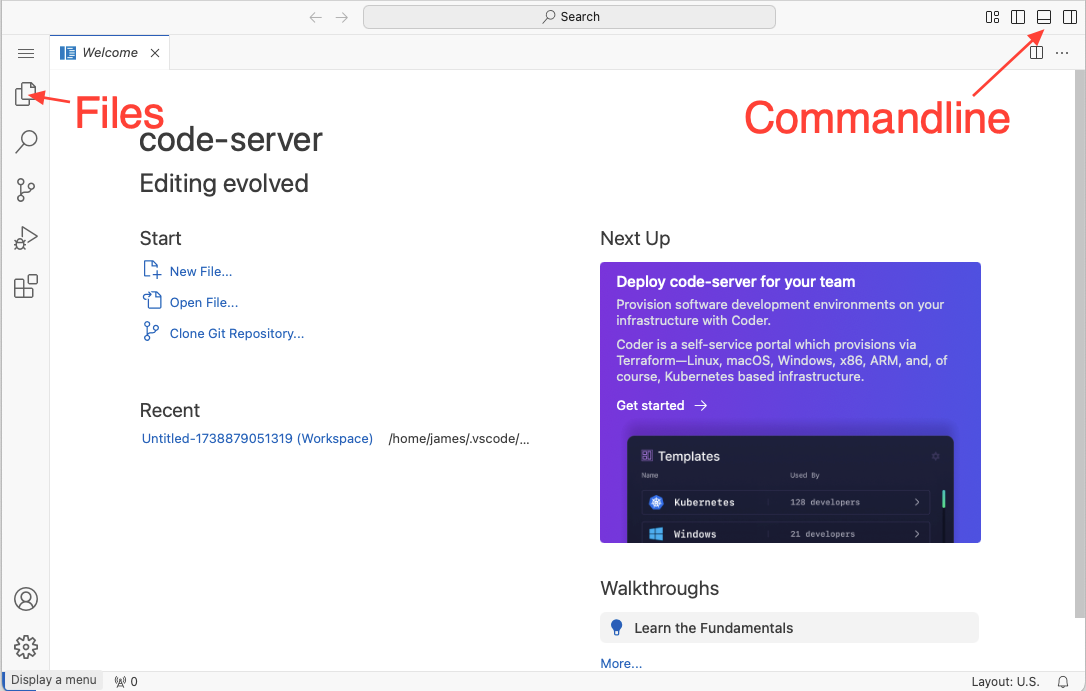
- Open up the files and the commandline, and choose the
terminaltab if you need to. - The chunk of green text is your prompt – where you'll type commands. Try
pwdto see where you are: probably/home/«whatever you chose»
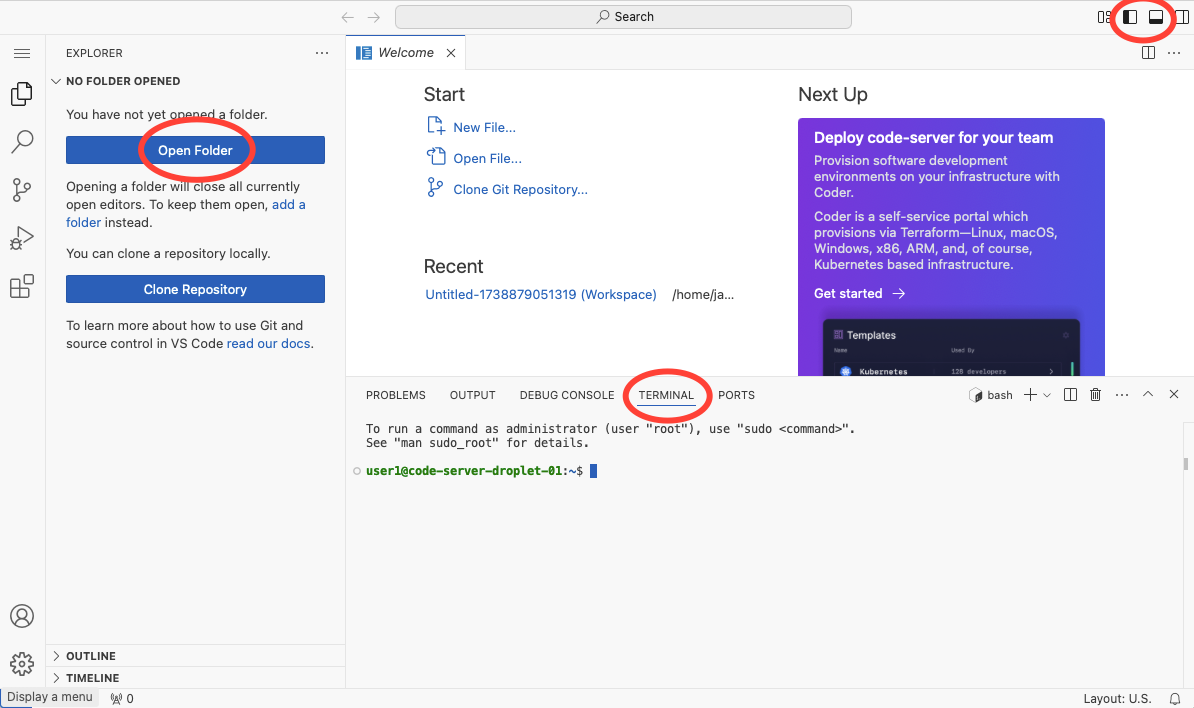
- Use Open Folder to get a dropdown, probably pointing to the same place (with a
\on the end. If it's not that, change it and hit enter to see the filesytem. If asked, you trust the author. You'll see a filesystem sidebar on the left, and you may need to open the terminal again to get to (roughly) here:
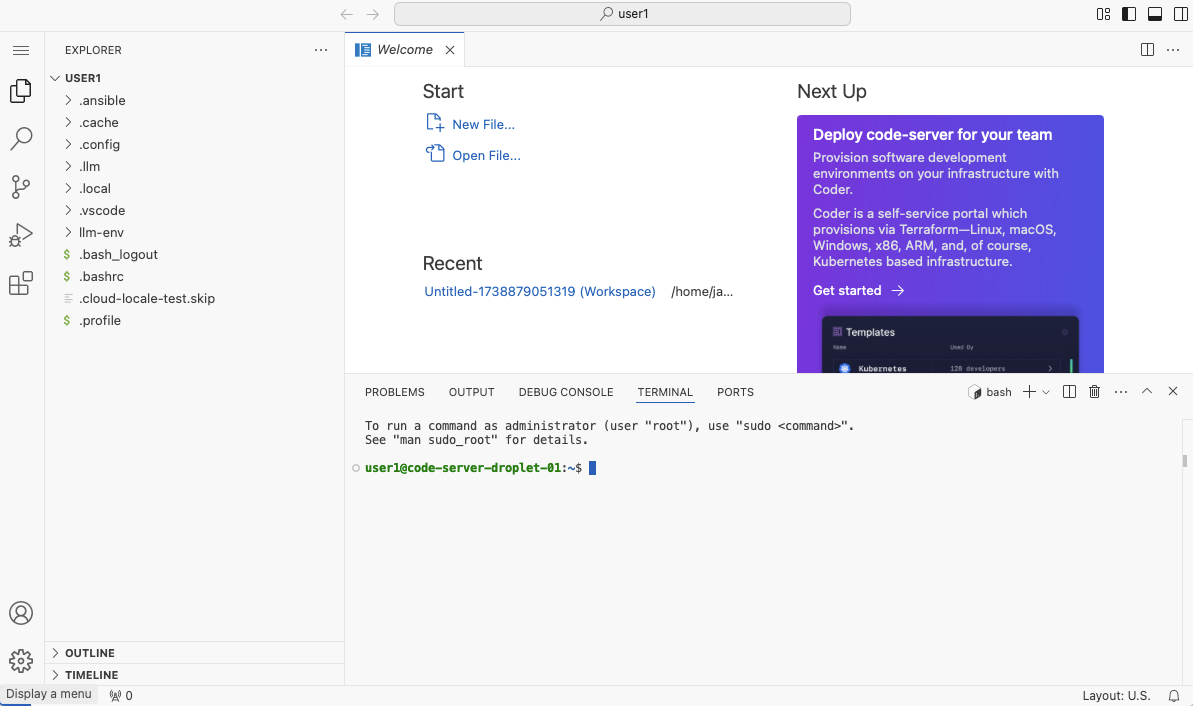
So now you've got a browse-able file system, and commandline access to a remote server, all in your browser. Which is what we need to start. One irritation: copy / paste from your host may not work for you. Or it might. If nit doesn't try right-click. I'm working on the config. It works for me...
- If you're unfamiliar with VSCode, take a moment to look around. Open the three-bar menu top-left, resize the parts if you want to, see the tooltips.
VSCode Parts
- Mode Panel (Narrow leftmost Sidebar):
- The menu icon at the top gives access to the VSCode menus
- The icons below change what the panel to its side does – file explorer, search, git, debugger, extensions.
- Explorer Panel (Left Sidebar):
- Shows your files and folders / search results / git history etc.
- Editor Area (Center-right):
- Currently shows a "Welcome" tab
- Has quick actions like "New File..." and "Open File..."
- When you select a file, you'll see it here.
- Can have tabs, and can be split vertically
- Terminal (Bottom):
- Command-line interface, with prompt
- You can run commands directly here without leaving the editor
- "OUTPUT" tab: Displays program output
- "TERMINAL" tab: For command-line operations
- Top Bar Elements:
- Command bar for VSCode commands
- Top right buttons show layouts
- Bottom Status Bar:
- Shows useful information like Current file type (bash), Layout settings, Additional status indicators
Materials
Note: headings below "fold up". They're left open for search, and (until I sort out a css thing, don't have foldup / down arrows)
Setup
50 mins
Exercise: Scope
10 mins warm up, ending with tools you want to take home
Talk to your table.
- Who are you?
- What do you expect to do/learn today?
- What tool would YOU like to build for work?
At the end, we'll share with the room – and in particular we'll try to capture the tools you want to build, and work towards them. Hint: think small.
Who we are
5 mins
Exercise: How to Count (Using Tools)
10 mins: Using tools, sharing thoughts
Count the "Bart"s, "Huib"s and "James"s in ATD's page for this tutorial
- Use whatever method you like.
- Then use a different method or tool.
 trendig
At the end, compare what you've done
Exercise: Parts for Tools / triggers for tools / tools for tools
10 mins: Hands-on with a framework to help think about tools
10 mins: sharing what we use
This exercise will get us thinking about building tools from parts. We'll consider any executable software tools, from browser bookmarklets to Ansible playbooks.
We'll necessarily consider context: Where a tool works, what it works on, when it might be needed, and what you do to run it.
 James Lyndsay
 James Lyndsay
Gallery: Our tools
- James' tiny tools – scripts, typically. Including bookmarkets, scripts and prompts.
- Bart's Tool Migration Spreadsheet
- Huib's handy sites
Bart's spreadsheet – experience report
I was asked to convert the export of one test management tool into importable content into another test management tool, where the output contained 2 files (one with the testcases one with the teststeps), that needed to be combined into single file, so I wrote a excel macro to get it done.
Excel Macro (non-commercial) at ... (Bart)
Huib's handy sites
- bit.ly/testersplayground
- bit.ly/testingtoolsrp
- bit.ly/evaluatetools
- bit.ly/alternativetools
- https://faker.readthedocs.io/en/master/
- https://github.com/xfxf/faker-python
- https://dev.to/ankitmalikg/python-generate-fake-data-with-faker-1ecj
- RANDOM.ORG - True Random Number Service
- https://www.testautomationtechradar.com/
- https://huibschoots.nl/posts/great-resources/#tools
At the end, we'll refine or revise what tools we'd like to take home
Part 1: Tools already on your laptop
35-40 mins to Break 1
Group: Tools Exchange
10 mins
Round Robin: What tools do you already have with you
Demo: Bart example in Google sheets and Excel
5 mins
Using a Macro
@Bart: send spreadsheet for JL to attach.
Exercise: Find the Right Data to Use
15 mins
We're going to build a data-picking tool – you can use macros and / or formulae in sheets (or whatever else, in whatever tool you like)
Here are two data sets:
The first dataset, for accounts, has several fields:
UniqueIDamountstatus(unknown, bad, questionable, good)new_Flag(True/False)suspended_Flag(True/False)
The second is a list of UniqueIDs already used in your testing.
Part 1: Data Picker
Write a macro in a spreadsheet of your choice to find an account to fit the following specs:
- positive amount of money in the account
- status = good
- suspended account
- have not been used in an earlier test
Part 2: Data Aggregator
Sum up the money in all suspended accounts
Stretch
Alert the user when there are no available 'suspended' accounts with -ve money.
At the end, let's summarise for each other what tooling is viable for the tool we want to take home.
Optional Exercise – Custom Build
20 mins; build and show off a tool
Opportunity hunt – what can you imagine that has value to you or someone in your workplace. Pick one for your group. Make a prototype with the tools you have available right now.
Marketplace
5-10 mins into the break.
What have we built?
What did we learn?
Part 2: Simple Tools for Complex Tasks
85 - 90 mins to lunch
Let's review the tools we want to go home with.
Command line tools
5 mins on workbench and commandline tools
The command line was the primary way to interact with computers until the advent of GUIs in the mid 80s. Coincidentally, the IEEE's POSIX standard turned up in 1988, and codified many of the command-line tools used by UNIX. In this section, we'll get to grips with some of those tools.
UNIX philosophy proposed that those command line tools should
- do one thing
- work together
- handle text streams as a universal interface
Your Workbench
If you've got a development environment that you'd like to use, use it. You'll want to clone the following for the exercises. https://github.com/workroomprds/CraftingCustomToolsRepo
If not, we've got VSCode in the browser for you. Go to cct01 or cct02 or cct03 depending on which table you're at.
Pick a name to be "you" for this session, log in (password is password), and pick VSCode. Once VSCode in the browser settles, you'll want to open the terminal. More details and pictures in the section Background: Workbench above.
Exercises
40 mins
We'll go to work on cat, grep, sort, head and the redirection operators – and modify based on the room.
grep– info – exercisessort– exercisescat,head,tail– info – exercises- Redirection operators
|,>>>,<(andtee) – info, exercise diff– info – exercisescurl– exercisexargs– exercisejq– exercise
Build
30 mins
Think about what you want to build.
Put it into context – when is it used, where does it run, what does it work on. Have a look at the framework on Patterns for Tools, and consider the parts that fit into those patterns.
- Map out some part of the thing that you want to take with you.
- Get one part of the (tool you need) to work as a proof of concept.
- Consider how you'll plug it into another part.
Not building your own tool?
You'll build something that extracts information from a file. That need means you'll need to feed that file into a filter, then manage the filtered information. We'll take logs as an example.
Short exercise: Using the log from the grep exercise, find the top 10 IP addresses that have the message Directory index forbidden. Here's the link https://www.workroom-productions.com/content/files/2025/02/Apache.tar
Longer Exercise: Let's talk. Here are a couple of sources for files that are explorable.
- GitHub - SoftManiaTech/sample_log_files: A large collection of system log datasets for log analysis researchA large collection of system log datasets for log analysis research - SoftManiaTech/sample_log_filesGitHubSoftManiaTech
- GitHub - logpai/loghub: A large collection of system log datasets for AI-driven log analytics [ISSRE′23]A large collection of system log datasets for AI-driven log analytics [ISSRE′23] - logpai/loghubGitHublogpai
Marketplace
5-10 mins, into lunch
- What have we built?
- What did we learn?
- Are we closer to what we wanted to build for our work?
Part 3: Generated Tools
90 mins to Break 2
LLMs can help you build custom tools – if you've got an example and a clear need, and you feel able to spot where the tool might be doing something wrong, you'll get there more easily.
LLMs and tools
LLMs can act as tools – but they're inconsistent, limited and expensive.
A better use, if we don't need the inherent text-processing and randomness abilities of LLMs, is to ask the LLM to make a tool.
Possible prompting patterns
Start with an example of input → output if transforming, or of event → action if triggering.
- Describe the situation (attach examples if you can), and ask for a re-statement and options to address it with automation. If the response could be refined, re-ask rather than converse.
- Ask for executable code and how to set up the necessary infrastructure.
- Inspect the code, and run it under your own permissions. Test it.
- If the results aren't satisfying, describe the results in the same conversation that had the code. Ask for options to improve. Make changes to the initial prompt and go from the top.
- If the results are satisfying, inspect again, ask for clarifications, ask an LLM to explain the code in a different conversation, test more, then check in the code if you're happy to take responsibility for it. If it's an ephemeral tool, keep it around for as long as you need it – then chuck it. Potentially keep track of the final tool prompt request.
Using LLMs
You probably want to use LLMs that you already have set up, or you ,may be familiar with using popular LLMs via their web pages or apps.
If you'd like to use them on the commandline, we have temporary keys for OpenAI and for Anthropic, and you'll use them via the commandline llm tool.
!! Activate the tool with source ~/llm-env/bin/activate
Example:
llm -m claude-haiku-4.5 "Who are you?"
Demo: Generating Bulk Data
Bart – asking the LLM to make the data
Huib – asking an LLM to make a tool to make the data
Exercise: commandline tool
20 minutes
LLMs are sometimes good at commandline tools. They're better at explaining a commandline tool.
For this exercise, we'll ask for the tool (in various LLMs) and then ask it to explain.
 James Lyndsay
Exercise: Custom asserts
20 minutes
BART - js matcher for google sheet
 James Lyndsay
 James Lyndsay
Exercise: Exploratory interface
20 minutes
 James Lyndsay
 James Lyndsay
Wrangling Environments
James uses Ansible to work with environments.
There's such a broad set of possibilities to this that we won't be doing a hands-on exercise in this (though if you have something you'd like to automate, off we go!)
Here's an example of one re-usable part: enabling https on a new environment. This example also includes an LLM's initial attempt, and the refinements made to it.
 James Lyndsay
Error Messages
As a debugging trick, it can be handy to ask the LLM to read an error message alongside the code and data.
Duff code
Ask an LLM to review code (and critique)
Purposeful code
Ask an LLM to guess the intent of your latest tests – if it can't tell, you need to be more clear.
Ask an LLM to guess the intent of someone else's old tests – can the LLM help you to understand the intent?
Iterating with LLMs
James Lyndsay James Lyndsay
 James Lyndsay
Marketplace 3
10-15 mins, into afternoon break
- What have we built?
- What did we learn?
- Are we closer to knowing what we might use to build what we want our work?
Part 4: Build your own
60+ mins
We'll work with you to build (some of) the tools you wanted. We expect that we'll coalesce into small groups using command-line tools, your existing tools, and LLMs.
At the end, we want several new tools that the group has built together, that can demonstrably do work that you find useful.
Wrap Up
25-30 mins
Final Marketplace
- 15 minutes Let's show each other what we have built
- 5 mins What did we learn?
- 5 mins Our next steps, to take when we're back at work.